
13 November 2026
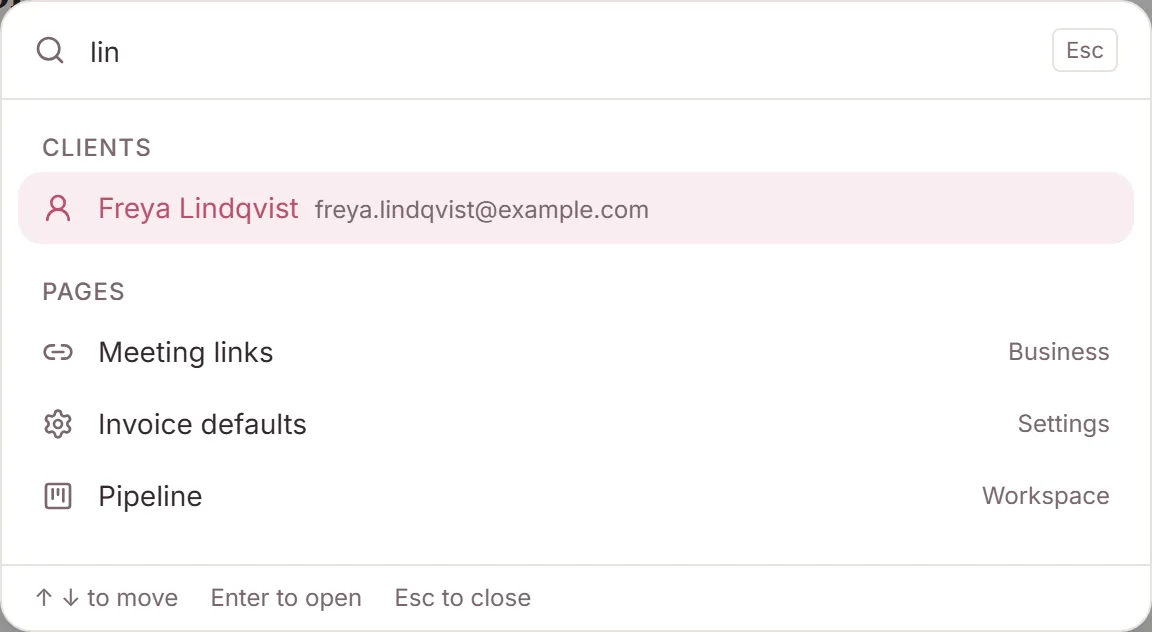
Press Ctrl+K to find anything.
Keep a note that's only yours.
A family rings and you need their file before they finish saying hello. A thought about your practice doesn't belong to any one client. Both now take one step.
Search
Search from the header
Click the search button at the top of any page, or press Ctrl+K (⌘K on a Mac).
- Clients by name, email or phone. Several words narrow it down, and a phone number matches however it is spaced, local or international.
- Invoices by number, once you type a digit.
- Contracts by title. They open on the client's Contracts tab.
- Pages and settings, including every Settings section. “Stripe” goes to Collect payments, and “billing” to Subscription.
- Quick actions: Add client, New appointment and New invoice.
The search box on Clients uses the same matching, so it finds phone numbers now too. Search covers your own workspace. It doesn't search notes, or clients shared with you by another practice.
Notes
Write a note just for you
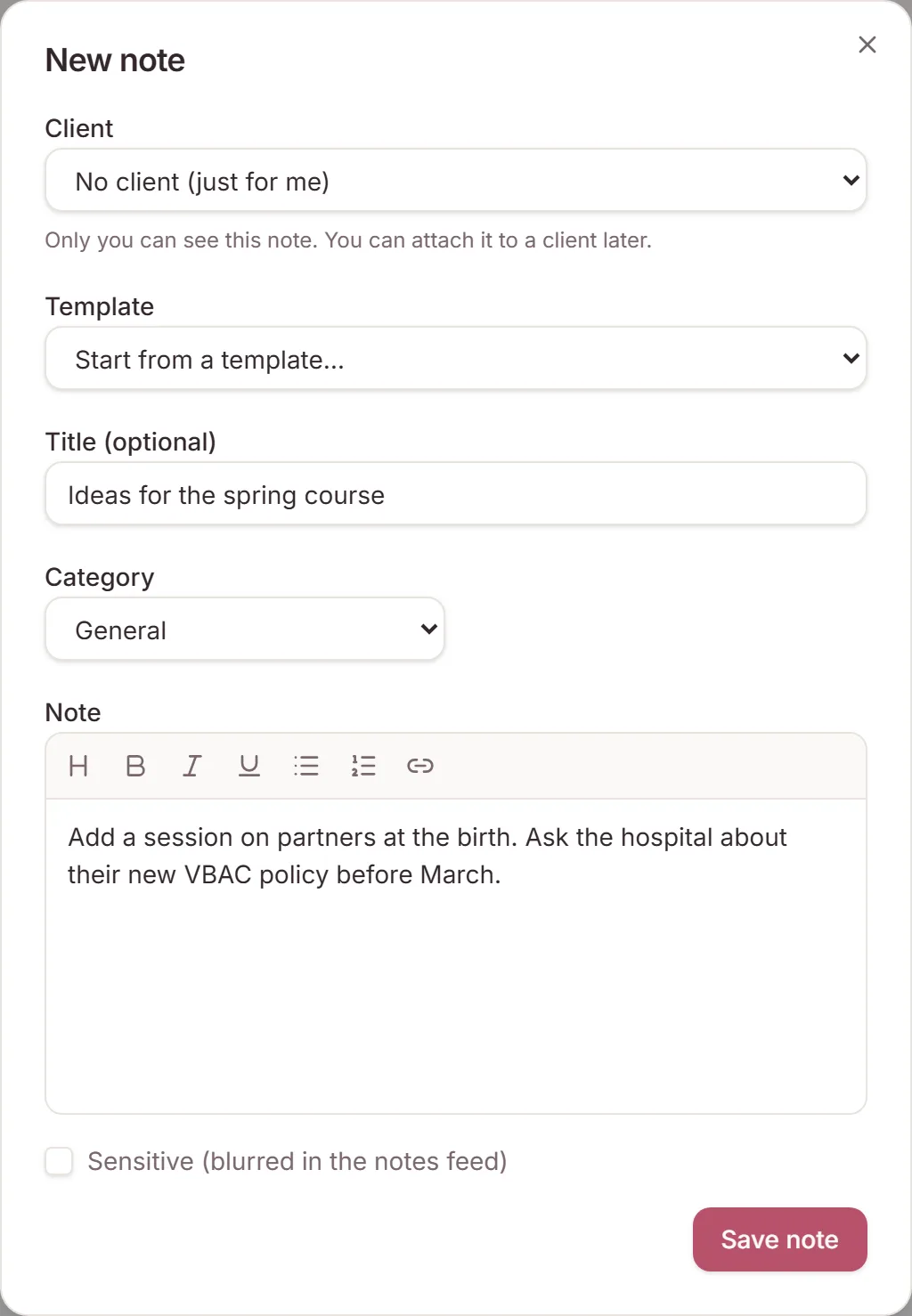
- Open Notes and click New note.
- Under Client, choose No client (just for me).
- Save it. Only you can see it.
Personal notes sit in their own section above your client notes. Filter to Just for me to see them on their own, and print them from there.
Notes
Move a note
Click Attach to client on a personal note to put it on a client's record. From the Notes page you can also edit a client note to move it to another client, or make it personal again if you wrote it. Notes added from a client's own page stay with that client.
If a save fails, for example because the client was archived in the meantime, you see an error and keep what you typed. If someone leaves your workspace, their personal notes there are deleted.
Need a hand?
Stuck on this update?
Write to us.
Tell us which note you were following, and the workspace email you sign in with. We aim to reply within one to two business days.