
24 November 2026
Send a client their notes.
As one branded PDF.
Until now, the only way to give a client their notes was to print them. Now the notes you tick become one tidy PDF with your logo and colours, ready to email or keep on file.
Notes
Turn ticked notes into a PDF
- Open a client and go to their Notes tab.
- Tick the notes you want to share. One note works, or a whole run of visits.
- Click Share selection.
The PDF has your logo and brand colour at the top, the client's name, and each note with its date, oldest first. Fill-in blanks you left empty print as a short line.
Choose Download PDF to see exactly what the client will get.
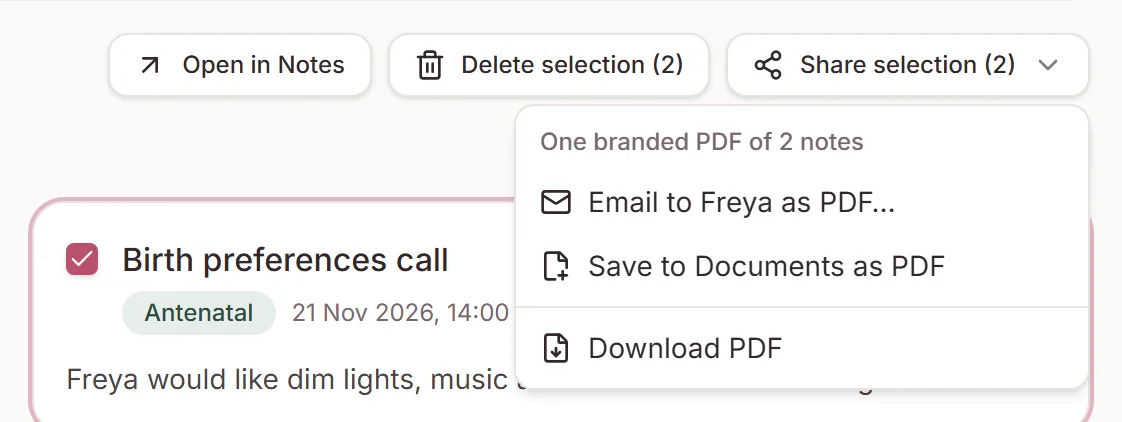
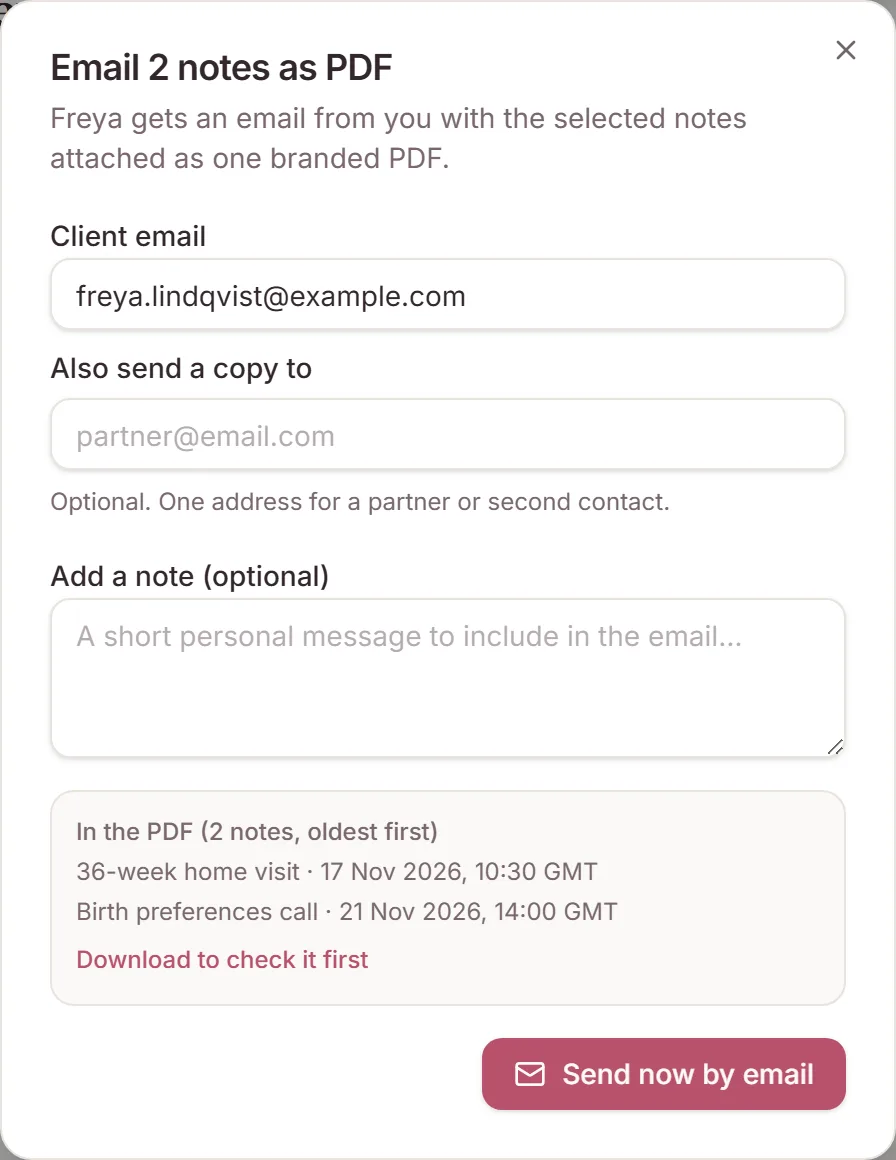
Email it to your client
- Choose Email to your client as PDF.
- Check the address. You can copy in a partner and add a short message.
- Click Send now by email.
The email comes from your business with the PDF attached, and shows on the client's Email tab.
Documents
Keep a copy in Documents
Choose Save to Documents as PDF and the PDF appears on the client's Documents tab. Documents are private to you and your team. The client does not see them unless you email them.
Sensitive notes can be emailed, but not saved to Documents, because backup doulas can open a client's Documents. Untick them first. Backup doulas don't see Share selection.
Need a hand?
Stuck on this update?
Write to us.
Tell us which note you were following, and the workspace email you sign in with. We aim to reply within one to two business days.